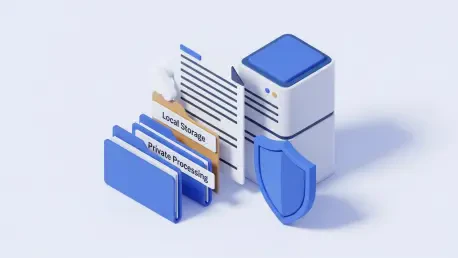

The persistent dominance of subscription-based software models has forced many individuals and organizations to reconsider the financial sustainability of essential digital tools like Adobe Acrobat. While these industry-standard applications offer robust feature sets, the recurring costs and the increasingly intrusive integration of cloud services have created a demand for more private, cost-effective alternatives. For many users, the primary concern is no longer just the price point but the security of their data. Uploading sensitive financial records, legal contracts, or personal identity documents to a third-party server for simple edits feels like an unnecessary risk in a landscape where data breaches are common. This has paved the way for the rise of self-hosted solutions that provide the necessary functionality without the associated privacy compromises. BentoPDF has emerged as a particularly compelling contender in this space, offering a comprehensive suite of tools that run entirely within a local environment. By leveraging modern web technologies and containerization, it provides a user experience that mimics the convenience of a web app while maintaining the ironclad security of an offline tool.
The transition toward self-hosting is not merely a trend for tech enthusiasts but a practical response to the “software-as-a-service” fatigue that has permeated the professional world. As 2026 progresses, the emphasis on digital sovereignty has become a cornerstone of both personal and corporate IT strategies. Users are looking for tools that they can own and control, rather than rent. BentoPDF addresses this shift by being an open-source, client-side toolkit designed specifically for managing PDF documents without external dependencies. Because the application processes files directly within the browser using the local machine’s resources, the data never traverses the internet. This architecture ensures that even if the host machine is connected to a network, the document content remains isolated from external monitoring or storage. For anyone handling high-stakes information, this local-first approach is not just a feature; it is a fundamental requirement for modern digital hygiene.
1. Evolution Of Document Management And Privacy Concerns
The historical reliance on centralized document management systems has often left users vulnerable to shifting terms of service and unexpected pricing hikes. For years, the standard workflow involved either paying a high premium for local software or opting for “free” online converters that often monetized user data or stored documents on insecure servers. This binary choice presented a significant challenge for privacy-conscious professionals who required high-level PDF manipulation but lacked the budget for enterprise-grade licenses. The emergence of tools like BentoPDF represents a maturation of the open-source community, where complex PDF manipulation libraries have finally become accessible through user-friendly interfaces. This shift allows for a sophisticated level of control that was previously gated behind expensive paywalls, democratizing the ability to manage digital paperwork efficiently.
Furthermore, the privacy implications of modern document processing cannot be overstated. When a user uploads a file to a cloud-based PDF editor, they are essentially handing over a digital copy of their most sensitive information to a company whose primary goal is data aggregation. Even with end-to-end encryption claims, the metadata and the structural content of these files can provide a wealth of information to third-party entities. Self-hosting a tool like BentoPDF mitigates these risks by ensuring that the “processing power” and the “data storage” remain under the same roof. This setup provides peace of mind for legal practitioners, medical professionals, and researchers who are bound by strict confidentiality agreements. By keeping the document lifecycle entirely local, these users can maintain compliance with various data protection regulations while enjoying the flexibility of a modern, web-based interface.
2. Core Capabilities Of The BentoPDF Ecosystem
BentoPDF distinguishes itself from simple file converters by offering a wide array of document management features that rival many paid alternatives. At its core, the tool excels at structural manipulations, allowing users to merge multiple documents into a single cohesive file or split a large report into smaller, more manageable sections. The interface is designed to be intuitive, enabling the rotation and reordering of pages with simple drag-and-drop actions. This level of utility is essential for compiling reports, organizing scanned receipts, or preparing presentations where the sequence of information is critical. Unlike basic viewers, BentoPDF treats the PDF as a dynamic container, giving users the freedom to reshape the document structure to fit their specific needs without needing to return to the original source file.
Beyond simple structural changes, the application includes a suite of advanced tools for form management and document optimization. Users can create fillable forms, add annotations for collaborative review, and redact sensitive information before distribution. The redaction tool is particularly vital, as it ensures that hidden text and metadata are stripped away, preventing the accidental disclosure of private details. Additionally, the software features powerful optimization algorithms that can compress large files for easier email sharing and strip unnecessary metadata that might otherwise reveal the document’s origins or previous authors. With support for converting PDFs to and from over a dozen different file formats, BentoPDF acts as a universal translator for digital documents, bridging the gap between various workflows and software environments.
3. Step 1: Set Up Docker Desktop On Your Machine
The first phase of deploying a self-hosted PDF solution involves establishing a reliable container environment. To begin this process, download and install Docker Desktop for Windows, macOS, or Linux from the official provider. If the installation is occurring on a Windows-based system, it is crucial to ensure that the Windows Subsystem for Linux (WSL 2) is enabled during the setup, as this provides the necessary backend for Docker to run efficiently. Once the installation is complete, a system restart may be required to finalize the configuration. After rebooting, look for the Docker icon in the system tray or menu bar. A green status indicator or a “running” message confirms that the Docker service is active and ready to host the BentoPDF container, providing a stable foundation for the application to operate in isolation from the rest of the operating system.
Using Docker for this type of deployment offers several technical advantages over traditional software installation methods. Containers act as lightweight, portable environments that include all the necessary libraries and dependencies required for the application to run. This means that users do not have to worry about conflicting software versions or missing system files on their host machines. Furthermore, Docker provides a layer of security by isolating the application from the host’s primary file system, unless specific access is granted. This isolation is particularly beneficial for a PDF tool, as it adds an extra barrier against potential document-based vulnerabilities. By following these initial setup steps, users are creating a controlled, reproducible environment that ensures BentoPDF will perform consistently regardless of the underlying hardware or operating system.
4. Step 2: Launch Your Terminal Or Command Prompt
Once the Docker environment is active, the next step involves interacting with the system through the command line. Open the PowerShell application if the operating system is Windows, or launch the standard Terminal application if the environment is macOS or Linux. The command line interface is the most direct way to manage Docker containers and allows for precise control over how the application is deployed. While many users may be more comfortable with graphical interfaces, the terminal provides essential feedback during the startup process, such as error logs or status updates, which can be invaluable if the initial configuration needs troubleshooting. This step serves as the bridge between the high-level management of Docker and the specific technical commands needed to bring the BentoPDF service to life.
Navigating the terminal might seem daunting to those who rarely use it, but the process for deploying a container is straightforward and well-documented. It is important to ensure that the terminal has the necessary permissions to execute Docker commands, which usually involves running the application as an administrator or being part of the specific user group created during the Docker installation. By mastering these basic terminal interactions, users gain a deeper understanding of how their self-hosted services are running in the background. This knowledge is not only useful for BentoPDF but also serves as a gateway to hosting a variety of other useful, privacy-focused applications. The command line is an incredibly efficient tool for managing system resources and orchestrating complex software deployments with just a few keystrokes.
5. Step 3: Prepare A Project Folder And The Configuration File
Creating a dedicated space for the application is essential for maintaining an organized and manageable self-hosted environment. Begin by creating a new folder on the local drive specifically for BentoPDF; this helps keep all configuration and data files in one place. Inside this newly created folder, use a text editor like Notepad or TextEdit to create a plain text file named docker-compose.yml. This file acts as the blueprint for the container, telling Docker exactly which image to download and how to configure the networking and restart policies. It is vital to name the file correctly, as the Docker Compose tool looks for this specific filename by default. Once the file is created, paste the following configuration into it to define the service parameters:
services:bentopdf:image: ghcr.io/alam00000/bentopdf-simple:latestcontainer_name: bentopdfports:- '3000:8080'restart: unless-stoppedThis YAML configuration is designed to be as simple and effective as possible. The “image” line specifies the official BentoPDF simple image, ensuring the latest version is always utilized. The “ports” section maps the internal port of the container to port 3000 on the host machine, which is where the user will access the application via a web browser. Finally, the “restart: unless-stopped” policy is a crucial inclusion, as it ensures that the BentoPDF service automatically starts whenever the computer is turned on or if the Docker service restarts unexpectedly. This automation removes the need to manually launch the app every time it is needed, providing a seamless experience that feels much like a native desktop application. By taking the time to set up this configuration file properly, users are ensuring the long-term reliability and accessibility of their local PDF toolkit.
6. Step 4: Initiate The Container Using The Background Mode Command
With the configuration file in place, it is time to bring the application online. Open the terminal and navigate to the directory where the docker-compose.yml file was saved using the cd command. Once inside the folder, type docker compose up -d and press Enter. This command instructs Docker to read the configuration file, download the necessary container image from the registry, and start the service in “detached” mode. Running in the background ensures that the application continues to function even after the terminal window is closed. During the initial run, the system will download several layers of data, which may take a few minutes depending on the internet connection speed. Once finished, a message will appear indicating that the container is started and running successfully.
The “detached” mode is particularly useful for server-like applications because it allows the host machine to continue with other tasks without being tied to an open command window. Users can verify that the container is active by running the command docker ps, which displays a list of all running containers and their respective statuses. This step completes the technical deployment of the software, turning a simple text configuration into a functional, high-performance web application running locally. The beauty of this approach lies in its efficiency; the software consumes minimal resources when idle but is ready to process intensive PDF tasks the moment it is called upon. By mastering this single command, users have successfully bypassed the need for complex installers and hidden background services that often plague traditional software packages.
7. Step 5: Access The Interface Through Your Web Browser
After the container is confirmed to be running, the user interface can be accessed through any modern web browser. Simply open a new tab and navigate to https://localhost:3000. This address points to the local machine and the specific port assigned in the Docker configuration. Upon hitting Enter, the BentoPDF dashboard should load immediately, presenting a clean and organized layout of all available tools. From here, users can begin processing their documents by dragging files into the browser window or using the file picker to select items from their local storage. The interface is designed to be responsive and fast, providing an experience that feels like a professional web service but with the security of a local installation.
The immediate availability of the dashboard highlights the power of containerized applications. There is no splash screen, no login requirement, and no prompts to update or subscribe. The software is ready to work as soon as the URL is loaded. Users can explore the various categories of tools, such as “Organize,” “Convert,” or “Optimize,” each containing specific utilities for different PDF tasks. Because the processing happens on the client side, the speed of document manipulation is limited only by the hardware of the host computer, rather than the bandwidth of an internet connection or the load on a remote server. This localized performance ensures that even large, complex files can be processed quickly and reliably, making it a viable daily driver for professional document management.
8. Step 6: Enable Access For Other Users On Your Network
One of the most powerful aspects of self-hosting is the ability to share these tools with others on the same local network without requiring them to install any software. To enable this, find the local IP address of the host computer. On Windows, this can be done by typing ipconfig in the terminal and looking for the “IPv4 Address.” On Linux or macOS, use the command hostname -I. Once the IP address is identified, other users on the same Wi-Fi or Ethernet network can access the BentoPDF toolkit by entering https://[your-ip-address]:3000 into their own web browsers. This setup effectively turns the host machine into a local “document server,” providing an essential service to a small office or household without the need for multiple licenses or individual installations.
This networking capability is a significant advantage for teams who need a unified toolset but want to avoid the privacy risks of public cloud services. Colleagues can jump into the interface, process a sensitive contract, and download the result without the file ever touching the public internet or the host computer’s permanent storage. It creates a collaborative environment that prioritizes security and efficiency. For home users, this means that a single high-powered desktop can handle PDF tasks for every laptop, tablet, and smartphone in the house. By sharing the local IP address, the user is extending the benefits of self-hosting to their entire immediate circle, fostering a more secure digital environment for everyone involved.
9. Critical Limitations Compared To Traditional Software
While BentoPDF is an impressively versatile tool, it is important to recognize its limitations when compared to a heavyweight application like Adobe Acrobat. The most significant difference is the lack of direct text editing. In Acrobat, a user can click on an existing sentence and rewrite it as if they were using a word processor. BentoPDF, by contrast, operates on an annotation and overlay model. While users can add new text blocks, stamps, or shapes on top of the original document, they cannot easily modify the underlying text that was already part of the PDF. This makes it ideal for filling out forms, signing contracts, or organizing pages, but less suitable for deep editorial changes or correcting typos in an existing document without the original source file.
Furthermore, the reliance on a web browser for access means there are no native mobile or desktop applications. While the web interface is responsive, it may lack some of the deep system integration found in native software, such as right-click context menus in the file explorer or specialized print drivers. Additionally, BentoPDF consciously avoids the inclusion of AI-powered features like automated summarization or conversational chatbots. While many modern PDF editors are rushing to integrate these technologies, BentoPDF remains focused on its core mission of local privacy and document manipulation. For users who require advanced machine learning tools to analyze their documents, this lack of AI integration might be a drawback, but for many, the “clean” and focused nature of the tool is its greatest strength.
10. Strategic Implementation For Future Document Workflows
The implementation of BentoPDF within a professional or personal workflow marked a significant shift toward digital independence and enhanced privacy standards. By choosing a self-hosted path, users effectively eliminated the recurring financial burden of software subscriptions while simultaneously securing their data against the vulnerabilities of cloud-based processing. The transition allowed for a more streamlined approach to document management, where the focus remained on utility and security rather than navigating the bloat of feature-heavy enterprise software. As individuals became more comfortable with containerized deployments, the initial learning curve associated with Docker proved to be a small price to pay for the long-term benefits of software ownership and data sovereignty.
Looking back at the deployment process, the success of the project relied on the clear separation between document manipulation and data storage. The actionable step for any user was the establishment of a localized hub that served their immediate needs while remaining scalable for future requirements. This strategy provided a blueprint for replacing other proprietary tools with open-source alternatives, fostering a tech-savvy culture that valued privacy over convenience. Ultimately, the adoption of BentoPDF demonstrated that high-quality document management did not have to come at the cost of personal information or financial flexibility. The move to a self-hosted environment successfully proved that professional-grade results were achievable through community-driven software and a modest investment in local infrastructure.