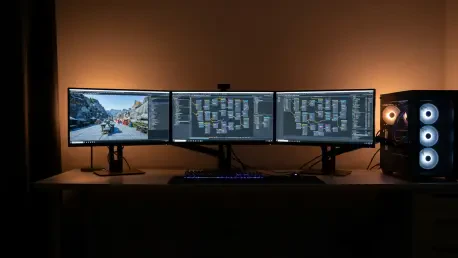

Achieving peak performance in Unreal Engine 5.8 requires more than just high-end hardware; it demands a surgical approach to operating system and hardware-level configurations that many developers overlook during the initial setup phase. As digital environments become increasingly complex in 2026, the traditional plug-and-play methodology often leads to instability, thermal throttling, and inefficient resource allocation. Modern workstations equipped with the latest silicon often struggle not due to a lack of raw power, but because of conflicting priorities between the Windows scheduler and the engine’s background demands. To truly harness the capabilities of Nanite and Lumen at scale, a professional must treat the entire ecosystem—from the BIOS to the configuration files—as a unified production environment. This holistic view ensures that every component is synchronized, allowing for seamless iterations and reduced downtime. By establishing a rigorous baseline, developers can focus on creative output rather than troubleshooting cryptic crashes or performance bottlenecks that typically arise from unoptimized system states. This foundational stability is especially critical when dealing with the high-concurrency tasks inherent in modern real-time rendering and large-scale asset compilation.
1. BIOS Configuration: Stabilizing the Silicon Foundation
Before addressing any software-layer settings, the hardware must be anchored in a state of absolute stability to withstand the grueling demands of shader compilation and high-fidelity rendering. Many modern motherboards come with aggressive factory settings that push CPUs beyond their recommended thermal and electrical limits, which can result in intermittent crashes during sustained Unreal Engine workloads. To rectify this, the first step involves accessing the system BIOS and locating the feature known as ASUS Multi-Core Enhancement or its equivalent on other manufacturer boards. Disabling this feature prevents the motherboard from automatically overclocking all cores beyond the standard specifications, ensuring that the processor operates within a predictable power envelope. This is not about sacrificing speed, but about ensuring that the system does not fail during a critical twelve-hour render or a massive project cook where stability is far more valuable than a marginal increase in clock frequency.
Building upon the initial stability adjustments, it is necessary to apply the Intel Default Settings configuration to align the hardware with the manufacturer’s verified performance profiles. This step is often overlooked, yet it serves as a primary defense against the voltage spikes that can occur during the rapid transitions in power demand typical of engine development. Furthermore, setting a strict limit for both PL1 and PL2 power levels at 253W provides a necessary ceiling that prevents the CPU from drawing excessive current that leads to thermal throttling. When these limits are enforced, the cooling solution can maintain a more consistent temperature, which in turn leads to more predictable performance during long-term development sessions. By constraining the hardware to these professional-grade parameters, the risk of “mysterious” blue screen errors or application exits is significantly mitigated, providing a rock-solid foundation for the more granular operating system optimizations that follow in the production pipeline.
2. Windows System Adjustments: Prioritizing Background Tasks
The Windows 11 kernel is inherently designed to favor the active window, which is an ideal configuration for general consumers but often detrimental to developers who rely on massive background processes. Unreal Engine 5.8 utilizes numerous background worker threads for shader compilation, and the default Windows scheduling can inadvertently throttle these processes when the user switches to another application. To solve this, one should navigate to the performance menu by executing the sysdm.cpl command in the Run dialog and then selecting the Advanced tab under Performance Settings. By changing the processing priority from Programs to Background services, the operating system is instructed to distribute resources more equitably to the engine’s worker threads. This adjustment significantly reduces the time required for the engine to prepare shaders and compile assets, as the background tasks are no longer penalized by the scheduler for not being the primary focus of the user interface.
In addition to processor scheduling, the real-time scanning behavior of modern antivirus software can act as a massive bottleneck during file-heavy operations like project building or source control syncing. Every time Unreal Engine creates a temporary file or writes a compiled object to the disk, the Windows Security suite attempts to scan it for threats, leading to a cumulative delay that can add minutes to every iteration. To prevent this, specific exclusions must be added within the Virus and threat protection settings of the Windows Security menu. Professionals should include the primary Unreal Engine installation path, such as C:\Program Files\Epic Games\UE_5.8, as well as the engine’s local data folder located in the AppData directory of the user profile. Furthermore, adding all directories containing active project files to the exclusion list ensures that the disk I/O remains unencumbered. This targeted approach maintains system security while removing the invisible friction that typically slows down large-scale development environments in 2026.
3. Graphics Environment: Utilizing Professional Driver Suites
The choice of graphics drivers and their subsequent configuration is a pivotal factor in maintaining a fluid viewport experience and preventing the stuttering that plagues many development machines. Standard gaming drivers are frequently updated to support the latest entertainment releases, but they often lack the rigorous stability testing required for sustained engine development workloads. Therefore, the first action should be to use a specialized tool like Display Driver Uninstaller in Safe Mode to completely remove any remnants of previous driver installations. Once the system is clean, a fresh installation of the NVIDIA Studio Driver should be performed, as these versions are specifically optimized for creative applications and provide a more reliable environment for the complex API calls used by Unreal Engine. This transition ensures that the GPU hardware is communicating with the software through a more stable and efficient bridge, reducing the likelihood of driver-related crashes during long sessions.
Once the Studio Driver is successfully installed, several internal settings within the NVIDIA Control Panel must be adjusted to align with the requirements of a high-end development workstation. The Power Management Mode should be set to Prefer maximum performance to ensure that the GPU does not downclock during periods of fluctuating load within the editor. Additionally, increasing the Shader Cache Size to 10 GB is a vital step to prevent the system from constantly discarding and recompiling shaders, which is a common cause of frame drops in the viewport. For more granular control, the specific profile for UnrealEditor.exe should be modified to limit the Background Application Max Frame Rate to approximately 20 or 30 FPS. This prevents the editor from consuming unnecessary resources when the developer is working in a secondary application. Finally, disabling the NVIDIA Overlay is highly recommended, as this feature has been known to cause persistent stuttering and compatibility issues with the Unreal Engine interface.
4. Configuration File Optimization: Tuning the Engine Internals
Directly modifying the configuration files of a project allows for a level of hardware utilization that the default engine settings simply cannot provide. The DefaultEngine.ini file, located in the project’s config folder, serves as the primary roadmap for how the engine interacts with the local hardware and manages memory. For developers utilizing modern 24GB graphics cards, the r.Streaming.PoolSize should be increased to 12288 to allow for a much larger texture footprint in VRAM without constant swapping. Accompanying this change with r.Streaming.LimitPoolSizeToVRAM set to 1 and r.Streaming.FullyLoadUsedTextures set to 1 ensures that the engine maximizes the available hardware memory rather than relying on conservative, legacy-focused streaming behaviors. These tweaks result in a much sharper and more responsive viewport, as the engine no longer needs to constantly stream in lower-resolution mipmaps during rapid camera movements or asset inspections.
Beyond texture management, the internal shader compilation logic can be significantly accelerated through a few strategic entries in the same configuration file. Setting bAllowCompilingAsynchronously to 1 and adjusting the WorkerProcessPriority to 0 allows the engine to utilize the CPU more aggressively during the initial project load and asset migrations. To balance this intensity, setting the MaxShaderJobBatchSize to 30 helps in managing the overhead of these tasks without overwhelming the system bus. On the rendering side, ensuring that the DefaultGraphicsRHI is set to DX12 is essential for accessing the latest architectural improvements in Unreal Engine 5.8. Furthermore, enabling the Shader Pipeline Cache and removing the framerate cap with t.MaxFPS set to 0 allows the hardware to perform at its true potential. These internal modifications, when combined with an Editor Background FPS of 60, create a development environment that feels significantly more responsive and aligned with the capabilities of a modern 2026 workstation.
5. MegaLights Integration: Activating Advanced Lighting Systems
The introduction of MegaLights in Unreal Engine 5.8 represents a massive leap in dynamic lighting capabilities, allowing for thousands of shadowed lights to exist within a scene with minimal performance impact. However, this system requires a specific set of project-wide prerequisites to function correctly and provide the intended visual fidelity. In the Project Settings, Lumen must be selected as the primary method for Dynamic Global Illumination, and Support Hardware Ray Tracing must be enabled to provide the necessary data for the MegaLights system. Setting the Ray Lighting Mode to Hit Lighting is crucial for accurate reflections and shadows, while the Shadow Map Method should be switched to Virtual Shadow Maps to maintain consistency across the scene. Once these foundational settings are applied, enabling the MegaLights Native Toggle will allow the engine to bypass older, less efficient lighting paths in favor of the new, highly scalable architecture.
To utilize MegaLights within a specific level, a Post Process Volume must be placed into the map and configured to encompass the entire playable area. This is most effectively done by enabling the Infinite Extent (Unbound) setting, which ensures that the volume’s parameters apply regardless of the camera’s physical location. Within the MegaLights section of the Post Process settings, the system must be explicitly set to Enabled to activate the specialized light culling and rendering algorithms. Finally, individual light sources must be configured to participate in the system by setting their Mobility to Movable and checking the Allow MegaLights box in their details panel. Selecting Ray Tracing as the Shadow Method for these lights ensures that they integrate perfectly with the hardware-accelerated pipeline. This structured approach allows for a level of lighting complexity that was previously impossible, providing a clear path for developers to create incredibly rich and immersive environments in the 2026 production cycle.
Future Implementation of Optimization Protocols
The comprehensive optimization of a Windows workstation for Unreal Engine 5.8 was achieved by addressing every layer of the system architecture, from the low-level BIOS settings to the high-level engine configurations. By implementing strict power limits and disabling unnecessary motherboard enhancements, the hardware was placed in a state of consistent and reliable performance. The transition of the Windows scheduler to favor background services, combined with the strategic exclusion of development paths from the antivirus scanner, removed the procedural friction that often hindered fast iteration cycles. These steps ensured that the core computing resources were always available to the engine’s most demanding tasks, rather than being diverted to consumer-focused operating system priorities. The resulting environment provided a much smoother workflow where technical limitations no longer dictated the pace of the creative process.
In the final stages of the setup, the deployment of NVIDIA Studio Drivers and the targeted modification of internal engine configuration files allowed the software to fully exploit the capabilities of 2026 hardware. The activation of MegaLights and the refined management of texture pools transformed the visual fidelity and responsiveness of the editor, allowing for more complex scenes to be handled with ease. These protocols established a baseline that moved beyond the default installations, creating a specialized toolset tailored for the rigors of modern real-time production. Following these established steps allowed for a significant reduction in compilation times and a marked improvement in viewport stability. Ultimately, this systematic approach to system tuning provided the necessary framework for any professional looking to push the boundaries of what is possible within the current technological landscape.past tense.