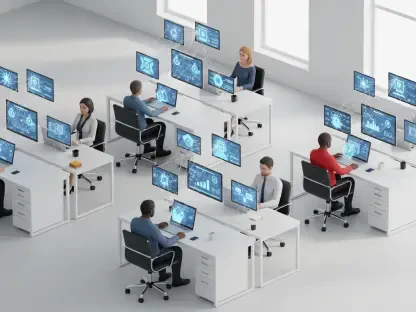

The modern digital landscape has fundamentally transformed the concept of a workspace, making the ability to control a computer from any location not just a convenience but often a necessity. Whether you are a professional needing to access a critical file left on an office desktop, a tech-savvy individual providing IT support to a relative miles away, or a small business owner managing a team of remote employees, the right software can bridge physical distances in an instant. This technology empowers users to see and interact with a remote computer’s screen as if they were sitting directly in front of it, offering a versatile solution for a wide array of personal and professional challenges. However, the market for these tools is densely populated, with each application offering a unique blend of features, performance capabilities, and pricing structures. Making an informed decision requires a careful evaluation of how these factors align with specific needs, as the ideal choice for a casual home user will differ significantly from that of a growing business. This analysis is designed to navigate that complexity, focusing on the most practical and effective solutions for individuals and small to medium-sized businesses, helping to distinguish a truly valuable tool from one that merely adds to the digital clutter.
A Closer Look at the Top-Rated Solutions
The Editors’ Choice Winners
TeamViewer has long been a dominant force in the remote access arena, and it continues to earn its top-tier status through a combination of a comprehensive feature set and remarkable accessibility. Its most compelling attribute is its entirely free, full-featured version designed for non-commercial use, which establishes it as the undisputed champion for individuals seeking powerful remote control without a financial commitment. The software is celebrated for its ease of use, allowing users to initiate connections quickly, often without the need for a registered account, and its file transfer capabilities are both seamless and reliable. This generosity, however, does not extend into the commercial sphere. For business use, TeamViewer’s licensing fees are notably high, a factor that can be prohibitive for small companies or startups operating on a tight budget. Another point of friction for paid users is the reported difficulty in unsubscribing from plans, as the company lacks a straightforward self-service method for cancellation, often requiring direct contact with customer support to process the request. This contrast between its exceptional free offering and its costly, somewhat rigid commercial plans defines its position in the market.
Sharing the top honors, RemotePC distinguishes itself by delivering an exceptional blend of high performance and affordability, making it an outstanding choice for businesses and individuals seeking a robust paid solution. It offers a powerful and convenient browser-based access option, which cleverly eliminates the need for users to install dedicated client software on the controlling machine, streamlining the process of connecting from any computer. One of its most lauded features is the intuitive drag-and-drop functionality for transferring files between the local and remote computers, a convenience that greatly enhances workflow efficiency. The software is consistently praised for its smooth and responsive connections, particularly when accessing Windows-based PCs. Despite its strengths, RemotePC is not without its limitations. The most significant is the absence of a free version, which places it out of contention for users who are not prepared to pay for a subscription. Additionally, it lacks built-in communication tools like audio or video chat, features that are increasingly standard among its competitors and are often valuable for remote support and collaboration scenarios. These omissions are key differentiators that potential users must weigh against its excellent performance and cost-effectiveness.
Top Contenders for Specific Needs
Splashtop Business Access has carved out a strong reputation for its impressively smooth and responsive performance, often providing a user experience that feels nearly as fluid as working on a local machine. Its signature feature, and a key reason it stands out from the competition, is its click-and-drag file transfer system. This functionality works flawlessly across different operating systems, seamlessly moving files between macOS and Windows environments, which is a common pain point with many other remote access tools. This cross-platform excellence makes Splashtop the leading recommendation for Mac users or anyone operating in a mixed-device ecosystem. The company is also noted for its enthusiastic and helpful customer service. On the other hand, its pricing structure can be somewhat complicated to navigate, with various plans and add-ons that may confuse new customers. Another peculiar limitation is its whiteboard feature, a useful tool for collaboration and annotation, which is curiously restricted to its mobile clients, preventing desktop users from accessing it during a session.
GoToMyPC is a veteran in the remote access space, consistently praised for providing a stable and reliable user experience that minimizes connection issues and performance hiccups. It is a dependable choice for professionals who require consistent access without interruption. The software comes equipped with a robust set of features designed to enhance productivity, including the ability to directly access the host PC’s command line for advanced troubleshooting, simple file transfer options, and a suite of valuable collaboration tools. These include a built-in chat function, a digital laser pointer to highlight specific areas of the screen, and a virtual whiteboard for real-time annotation. However, this premium performance and feature set come at a cost. GoToMyPC is positioned at a higher price point compared to many of its rivals, which may place it outside the budget of some individuals and small businesses. Furthermore, it does not offer a free version for personal use, limiting its appeal to users who are willing to invest in a paid subscription for its reliability and advanced capabilities.
Zoho Assist effectively positions itself as a powerful contender, particularly for commercial environments, by offering a compelling combination of affordable pricing and a uniquely generous free plan. Unlike most competitors, its free tier is explicitly permitted for business use, allowing a single technician to remotely access up to five unattended computers. This makes it an invaluable starting point for small businesses or solo IT consultants. A significant advantage of Zoho Assist is its ability to not only access computers from mobile devices but also to remotely control the mobile devices themselves, a feature not commonly found in other platforms. It also boasts valuable integrations with popular business tools like Slack, Microsoft Teams, and Google Contacts, streamlining workflows for support teams. Despite these strengths, the platform is not without its drawbacks. Users have reported that its performance can sometimes feel laggy, especially during cross-platform sessions between different operating systems. Additionally, its user interface is often described as cluttered, which may present a steeper learning curve for new users compared to more streamlined alternatives.
Other Notable Options
AnyDesk has gained considerable popularity as a lightweight and efficient remote access tool, largely due to its free version for personal use and its proven ability to establish quick and reliable connections. The software is designed for simplicity and speed, allowing users to get up and running with minimal configuration. It also provides solid mobile support, enabling users to view their computer screen from a smartphone or tablet, which is convenient for quick checks and simple tasks on the go. However, its performance is hampered by a noticeably lower frame rate when compared to its top-tier competitors. This can result in a less fluid visual experience, with screen updates appearing somewhat choppy, which may be distracting for tasks that require smooth graphics. AnyDesk is also a more basic tool in terms of features; it lacks built-in functionalities for audio chat, video conferencing, or a collaborative whiteboard, which limits its utility for interactive remote support or team collaboration scenarios. The initial setup process has also been described by some as potentially confusing for first-time users.
LogMeIn Pro is a well-established solution that offers significant flexibility, primarily through its ability to allow users to access their remote PCs from any standard web browser. This browser-based approach eliminates the need to install dedicated client software, providing a major convenience for users who need to connect from various public or shared computers. The platform also provides quick and easy access to files on the remote machine and presents system diagnostic information in a clear and accessible format. These benefits, however, come at a premium, as LogMeIn Pro is one of the more expensive options in the remote access market. Its pricing structure can be a significant barrier for individual users or small businesses with limited budgets. A further limitation is that its personal plans are designed almost exclusively for accessing one’s own machines. They are not well-suited for providing remote support to others, as the licensing and feature set are optimized for a single user connecting to their own set of devices, thereby narrowing its overall use case compared to more versatile competitors.
Your Comprehensive Buying Guide
Deciding Between Free and Paid Software
For individuals seeking a powerful remote access solution for personal, non-commercial use, TeamViewer stands as the definitive top pick. In a market where many competitors severely restrict the capabilities of their free versions to push users toward paid upgrades, TeamViewer provides nearly its full suite of features at no cost. This includes high-performance connections, cross-platform access, and robust file transfers. The primary limitations of the free license are the absence of audio and video chat functionalities and a restriction that allows users to transfer only one file at a time. Despite these minor constraints, it remains an incredibly powerful and versatile tool for personal projects, managing home computers, or providing technical assistance to friends and family. It is crucial for free users to be aware that TeamViewer employs an AI-driven system to detect activity it suspects is commercial use. This can occasionally result in false positives that temporarily lock out legitimate personal users. While this can be a source of frustration, the company’s customer support team is generally responsive and able to resolve these issues for users who appeal the flag and can demonstrate their non-commercial use case.
When the need for a free remote access solution extends into a commercial setting, the options become significantly more limited, but not entirely non-existent. In this niche, Zoho Assist distinguishes itself by offering a free-for-commercial-use plan that provides genuine value for small businesses. While it is not without its limitations—the plan allows for only one technician to connect to a maximum of five unattended computers—it serves as an excellent, no-cost entry point for solo entrepreneurs, small IT support providers, or businesses just beginning to explore remote access capabilities. This free tier includes essential features needed for basic remote support and management, allowing a business to establish a remote workflow without any initial financial investment. This makes Zoho Assist a strategic choice for organizations that need fundamental remote access but are not yet ready or able to commit to the recurring costs associated with the more feature-rich paid plans offered by competitors. It effectively bridges the gap between purely personal free software and expensive enterprise-level solutions.
Prioritizing Security and Safety
While all the reputable applications recommended in this guide utilize strong, end-to-end encryption to secure the data transmitted during a remote session, the software itself is only one component of a comprehensive security strategy. User diligence and personal security practices are paramount to ensuring a safe remote access experience. To prevent unauthorized individuals from gaining control of your accounts and, by extension, your computers, it is absolutely essential to adhere to fundamental security principles. This starts with using a strong, unique password for your remote access service—one that is not reused across other websites or applications. Furthermore, whenever the option is available, you must enable multi-factor authentication (MFA). MFA adds a critical second layer of security, typically requiring a code from your smartphone in addition to your password, making it exponentially more difficult for an attacker to compromise your account even if they manage to steal your password. These user-controlled measures are the most effective defense against unauthorized access.
A critical security threat that specifically leverages this technology involves sophisticated social engineering scams. In these scenarios, fraudsters impersonate technical support agents from well-known companies like Microsoft, Apple, or even a user’s internet service provider. They often contact victims via unsolicited phone calls, emails, or pop-up browser warnings, claiming that a virus or other critical error has been detected on the user’s computer. The scammer’s goal is to create a sense of urgency and panic, ultimately tricking the unsuspecting individual into installing remote access software and granting them control. Once the fraudster has access, they can steal personal data, capture banking credentials, install malware or ransomware, or trick the victim into paying for fake services. The advice from cybersecurity experts on this matter is simple and absolute: you should never install remote access software or grant control of your computer to any person or company that contacted you unsolicited. Legitimate tech support organizations will not initiate contact in this manner to report a problem with your device.
Finding the Right Fit for Your Operating System
For the vast majority of computer users who operate on the Windows platform, the good news is that nearly every remote access application on the market performs well and offers a full set of features. The ecosystem is mature and well-supported. For individuals, the best all-around choice remains TeamViewer, primarily because its powerful and largely unrestricted free version provides a level of functionality that is unmatched by any other no-cost option. For small businesses, however, the calculus changes. TeamViewer’s high commercial licensing fees can be a significant hurdle. In this context, RemotePC emerges as the superior and more budget-friendly paid alternative. It delivers excellent performance, a user-friendly interface, and a more accessible price point, making it the ideal choice for businesses that need reliable remote access for their teams without incurring the substantial costs associated with enterprise-grade solutions like TeamViewer’s commercial plans. This clear division makes the choice straightforward depending on the user’s commercial or non-commercial needs.
While most remote access applications offer a client for macOS, the quality of the user experience can vary significantly, particularly when it comes to performing tasks that bridge the gap between different operating systems. A common point of friction is the process of transferring files between a Mac and a Windows PC. This is where Splashtop distinguishes itself as the clear winner for Mac users. Its key differentiator is the seamless and intuitive drag-and-drop file transfer functionality that works flawlessly between macOS and Windows, a convenience that other applications often struggle to replicate effectively. This makes it the top recommendation for anyone who frequently works in a mixed-platform environment. For Mac users whose needs are strictly personal and who require a free tool, TeamViewer once again stands out as the best and most reliable option available. Its macOS client is robust and offers the same extensive feature set as its Windows counterpart, ensuring a consistent and powerful experience at no cost for non-commercial use.
What About Using Video Conferencing Tools
With the widespread adoption of video conferencing platforms like Zoom, many users have discovered their built-in screen sharing and remote control features, leading some to wonder if these tools can serve as a substitute for dedicated remote access software. While convenient for quick, collaborative tasks, using them for true remote access is not recommended due to several critical deficiencies. The most significant limitation is the lack of support for unattended access. This feature is the cornerstone of personal remote access, allowing a user to connect to their own computer at any time, from anywhere, without needing another person to be physically present at the remote machine to approve the connection. Video conferencing tools require an active participant on the other end to grant control for each session. This makes them entirely unsuitable for scenarios like accessing your office desktop from home, retrieving a file from your home PC while traveling, or managing unattended servers, which are primary use cases for dedicated remote access software.
Beyond the fundamental issue of unattended access, another major drawback of using video conferencing tools for remote control is their inferior performance. These platforms are primarily optimized for streaming video and audio, not for transmitting the constant, high-frequency screen updates required for a smooth and responsive remote control experience. As a result, when you take control of another screen via a tool like Zoom, you will often experience significant lag and latency. Mouse movements can feel sluggish, typing can be delayed, and screen redraws can be choppy. This creates a frustrating and inefficient user experience. In contrast, dedicated remote access applications are engineered from the ground up to minimize latency. They use highly optimized protocols and compression algorithms specifically designed to deliver a fluid connection that feels as close as possible to working directly on the remote machine, making them vastly superior for any task that requires genuine interaction with the remote desktop.